
ERICA is the matrix builder and our pd-ERIC software is its front-end. pd-ERIC provides a user friendly interface for the ERICA control files as well as essential functions for cleaning the raw data, expanding to classified counts, tabulating and analysing the o-d database. The pd-ERIC/ ERICA combination maintains the o-d data’s internal consistency so that extracts, tabulations and analyses can be undertaken across the whole o-d database or for selections from it. The matrices it produces can be put into a transport model and used for scheme appraisal. It plays an important role in helping to keep consistency in the appraisal of different schemes and in the appraisal of the same scheme over time.
pd-ERIC/ERICA keeps your important o-d data in a safe place, as an essential resource for the future. It contains the tools you need to use it for developing your Local Transport Plan, for modelling your new schemes and for scheme appraisal. In Best Value, it is useful for setting targets, monitoring progress and demonstrating that they are being achieved.
ERICA has been developed during a series of important research projects for DTLR into matrix building. Initially developed for the ERTM/ SERTM models to hold the extensive London roadside interviews (RSI), it was used to statistically build consistent trip matrices by merging the origin-destination movements using DfT’s variance weighting taking account of trips that wiggle across rsi screenlines and the problems associated with motorways. It was extended during the MYSTIC project to hold household data as well as pre-existing matrix data. The merging was extended to allow inconsistent zone specifications and matrices were build from UK datasets in the South East, West Midlands, Manchester and Scotland to give national coverage as well as international datasets from the UK, France, Germany, Norway, Sweden, Denmark, Finland and the Netherlands. It is being further extended on the DATELINE project to build long-distance matrices for the whole of Europe.
ERICA has been used since 1992 to build matrices for most of the models around London including: ERTM/SERTM, MUM, LASER, NAOMI, LATS, County models in Surrey, Kent and Hertfordshire and various scheme appraisal models. Special versions of ERICA have been developed and are being used in the Census Matrix Tools software, for the DfT’s rail passenger matrix builder, for the European MYSTIC matrices and for the DATELINE long-distance household travel diary database and modelling. ERICA is owned by DfT and contains MatrixOCX, Peter Davidson’s fast low-level object library for handling very large datasets and very large matrices.
ERICA runs on RSI data in fixed width text files, but pd-ERIC can also build matrices from RSI or Household interview data in Excel files.
To build matrices, the project must include an ERIC database, as listed in the Databases-loaded.xls files in the test data. The format of the MyEricDatabase.xls file must be as in the Test Data. It lists the Parameter files that Erica requires to run and the pd-Eric project file - Projfile.txt. The format of this is as in the Test Data examples, listing the parameter files. The parameter files are described in detail in the Erica Manual.
Pd-Eric is entered by using the Build Matrices item on the Methods Menu or it can be entered from the Data Viewer by displaying the Databases_Loaded.xls file, clicking on the row with the MyEricDatabase.xls file and clicking Go Into Database. Then click the row with the Project file and click Go Into Database again.
Text RSI Files
Pd-Eric displays the parameter files in text boxes. Click the Build Matrices button and the Build Erica Matrix form is displayed with the parameter file names. Enter the name of the output matrix file and then click the Run button.
Excel RSI Files
To build matrices from Excel RSI files, click the Build Matrices From Excel button. On the form that is displayed, select the Staseg file. For Excel matrix builds, this is an Excel file that lists all the individual RSI files that are to be processed. The directory containing the Staseg file must also contain two of the Erica parameter files, Secpat.par and Ercodm.par. A name for the output binary Erica matrix should be entered.
When the staseg file name is entered, the first data file that is listed in it is opened and the names of the ranges in it are listed on the “Select Required Range” combo box. Select the range with the RSI data. The headings in this range are then listed on the Origin Zone, Destination Zone and Expansion Factor combo boxes. Select the columns containing this information.
The Gulf Data test project contains test data to illustrate this in the Eric_Database subdirectory. Browse to the Staseg.xls file in Testdata\ExcelData\ParameterFiles and choose the range “Database”. For Origin, Destination and Expansion choose ORIG_WMSTM, DEST_WMSTM and EXPANSIONS and enter an output matrix name. The form should look like this:
Click Build Matrix and the matrix will be built. Labels on the bottom of the form will say how many trips were read in and written out and how many records could not be processed due to invalid data in the Origin, Destination and Expansion Factor fields.
With Excel files the matrices that are produced can be more than just simple O-D trip matrices built using the Expansion Factor field, as is the case with the example above. They can be market segmented using the data in the other fields. To do this, select one of the required fields in the Market Segment Variables combo box and then click the Select button next to it. The field name is then added to the Selected variables list. It can be removed using the Delete button if it was chosen by mistake.
If a field is required for market segmentation, there must be a range with the same name as the field in the first data file listed in the staseg file. This range must have the same name as the field and should give the name of each value that the field can have, listed in numerical order in the first column of the range. See the example Staseg.xls.
On selecting the field, these names will be listed in the Levels available combo box. If the necessary range does not exist, a message will be displayed. Select one of the required levels and click the Select button next to it to add it to the Selected levels list. Again, it can be removed using the Delete button if it was added by mistake. Select the rest of the levels required for this variable and when they have all been chosen, select the next variable required from the Market Segment variables combo box and proceed as before.
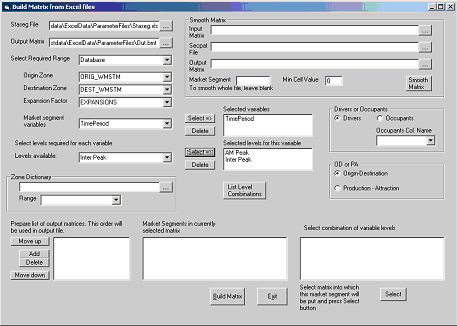
As an example using this test data, select TimePeriod in the variables drop down box, click Select and then choose AMPeak in the Levels drop down box and click its Select button. Then choose Inter Peak and Select. The form should look like this:
Now select New_VT_Code from the variables drop down box, click Select and then choose Car & LGV from the Levels list followed by Freight.
When all the required variables and their levels have been chosen, click the List Level Combinations button. This will list all possible combinations of the selected variable levels on the list headed “Select combinations of variable levels”. The required combinations can now be linked to Market Segment numbers in the output Binary Erica matrix. To do this, click the Add button and enter a name for the first market segment. Select it in the list and then select the combination of variable levels in the list that is to be written into it and click the Select button below the list. If any other combinations of levels are to be added into it, select them in the list one at a time and click the Select button. Any number of combinations may be added together in a market segment.
When all choices have been made for a market segment, click the Add button and enter a name for the next market segment. Proceed as before until all market segments have been created. Unwanted market segments may be deleted and the order of the market segments may be changed using the Move up and Move down buttons. The final order will be used in the output matrix.
Continuing the above example, after clicking List Level Combinations add a matrix called AM and then select “AM Peak Car & LGV” from the combinations list and click Select. Then click on Freight and click Select. Now add a matrix called Inter and select each of the Inter Peak combinations in turn.
The form should now look like this:

Selecting any matrix already on the list e.g. “AM” will list the combinations in it in the box headed “Market Segments in Currently Selected Matrix”
Matrices can be built using vehicle occupancy to give the total number of people travelling instead of the number of vehicles. To do this, click the Occupants option and use the combo box below it to select the column giving the number of vehicle occupants.
When everything has been set up, click the Build Matrix button. The output matrix will have two market segments, with the first having the trips made in the AMPeak by Car, LGV and Freight. The second has the Inter Peak trips made by these vehicle categories.